Configuring Role Templates
Each Role Template is associated with a set of modules and a set of Instances with View or Edit access. Whenever a Role Template is mapped to a User, the User can access the Modules and Instances as per the defined configuration settings within that Role Template.
To configure Role Templates:
- Select Admin> Basic > Users > Role Template.
- On the ROLE TEMPLATE page, a list of configured Role Templates is displayed.
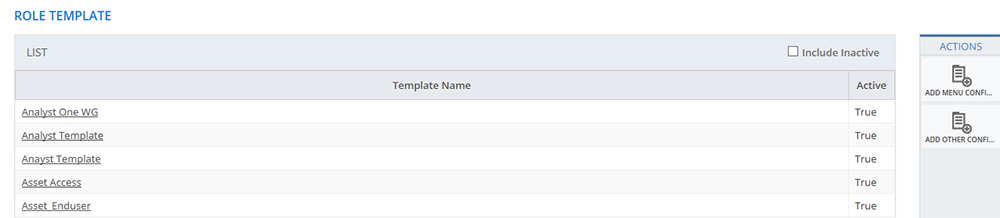
Figure: ROLE TEMPLATE page
- To view the list of inactive Role Templates , select the Include Inactive check box.
- Click a Template Name. The ROLE TEMPLATE - MENU CONFIGURATION page is displayed. You can view or modify the menu configuration. For more information about fields on the ROLE TEMPLATE - MENU CONFIGURATION page, see Role Template Menu Configuration.
- Click the OTHER CONFIGURATION icon on the ACTIONS panel to view or modify the Other Configuration details for the selected Role Template. For more information about fields on the ROLE TEMPLATE - OTHER CONFIGURATION page, see Role Template Other Configuration.
- You can add Role Templates and configure menus and other configuration using the icons on the ACTIONS panel. For information about these icons, see ACTIONS.
ACTIONS
This section explains all the icons displayed on the ACTIONS panel of the ROLE TEMPLATES page.
ADD MENU CONFIGURATION
Click ADD MENU CONFIGURATION to create a new Role Template and configure menus for the Role Template for specific modules. For more information about configuring menus for a Role Template, see Role Template Menu Configuration.
ADD OTHER CONFIGURATION DETAILS
Click ADD OTHER CONFIGURATION DETAILS to create a new Role Template and configure other configurations for the Role Template. For more information about configuring other details, see Role Template Other Configurations.
References