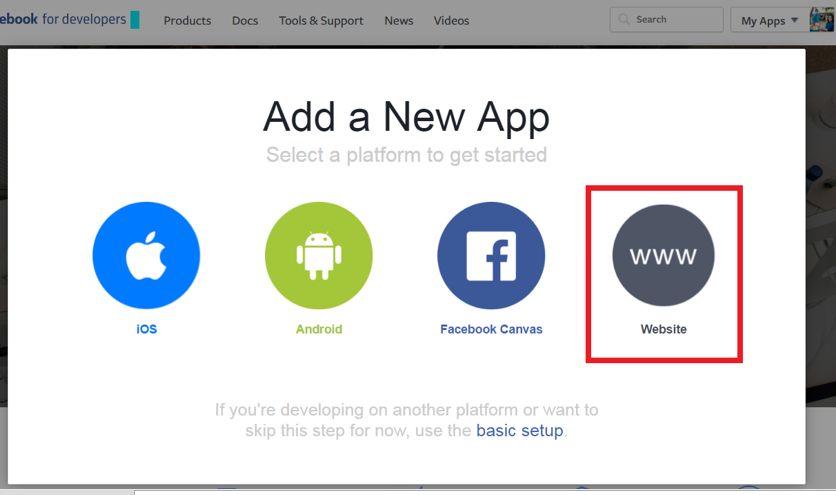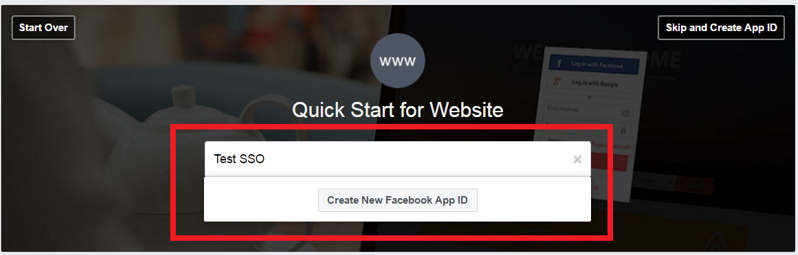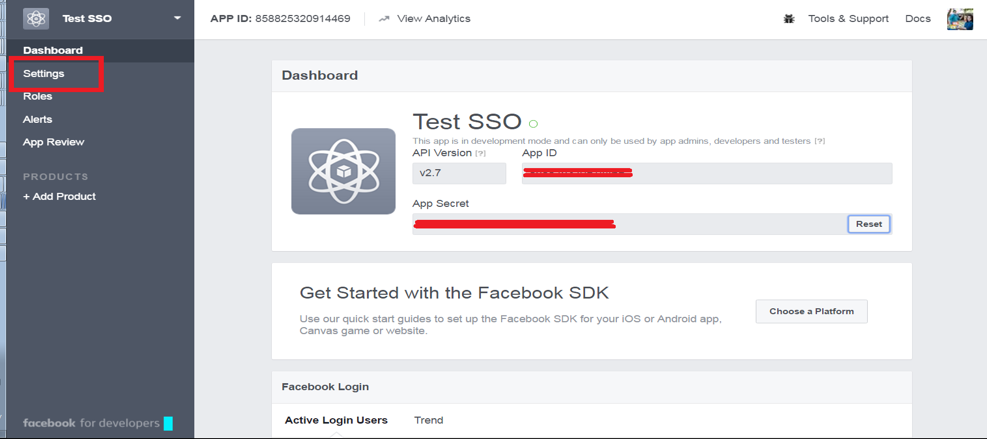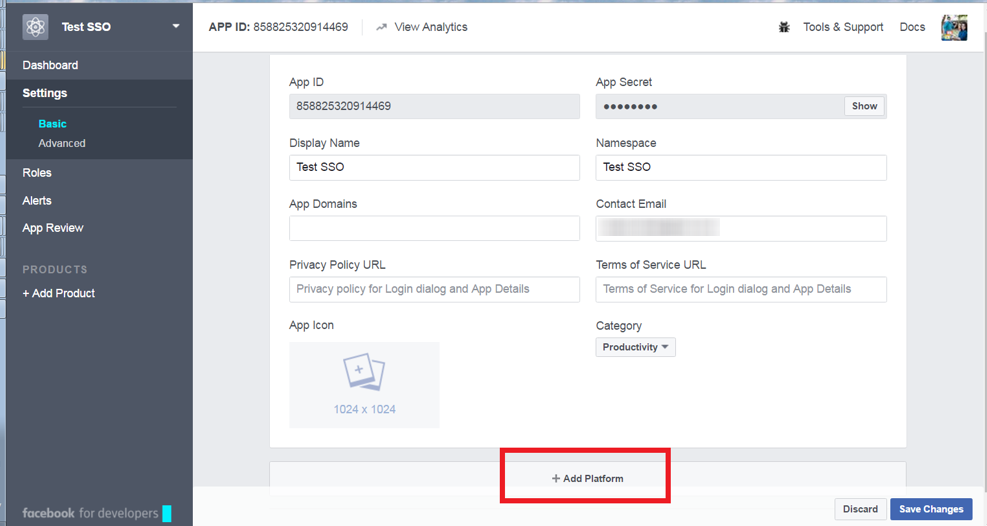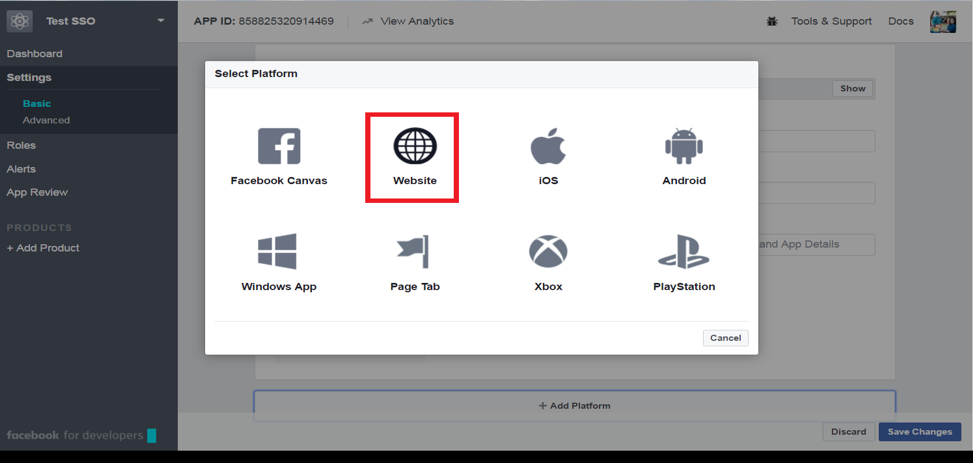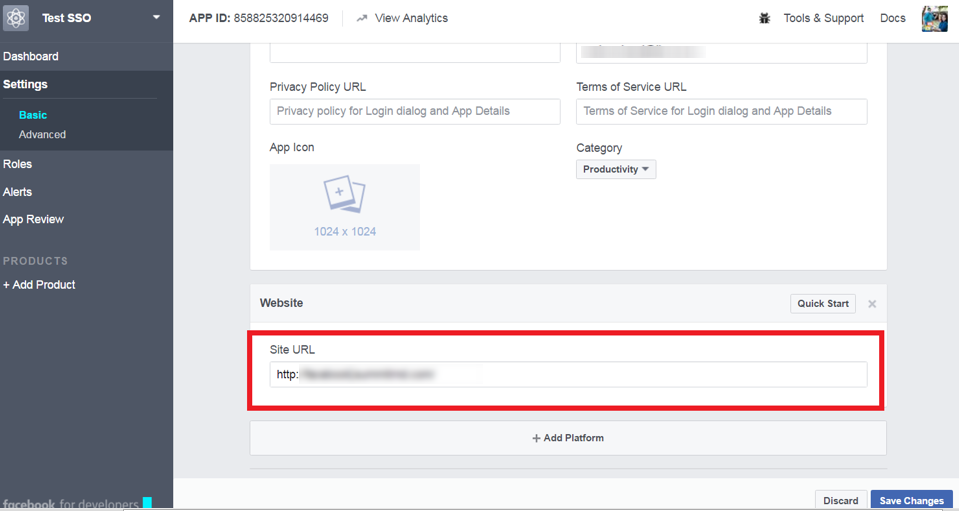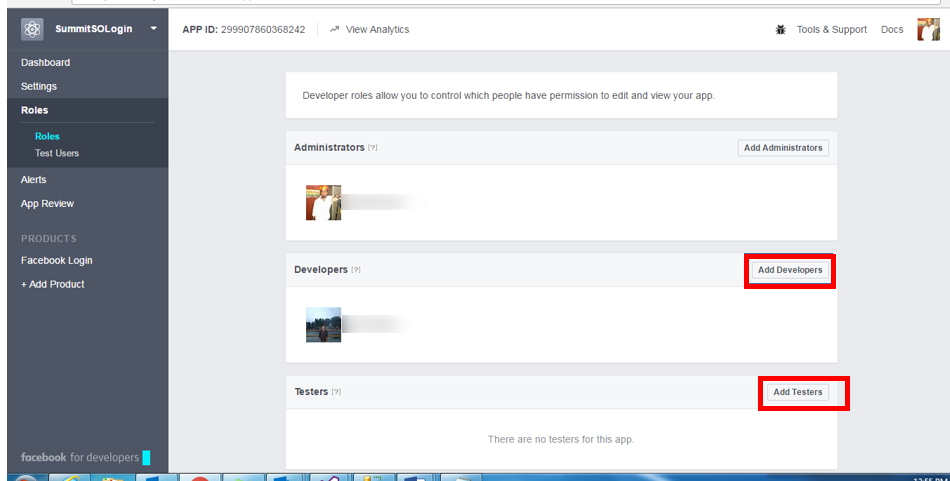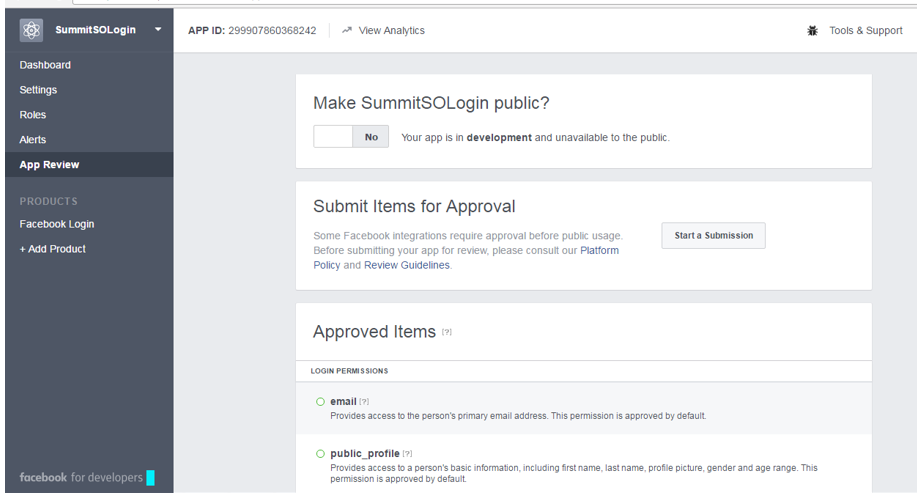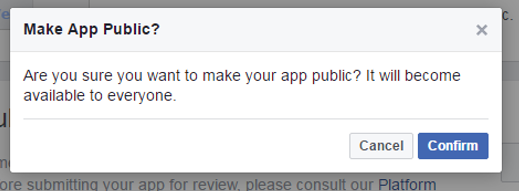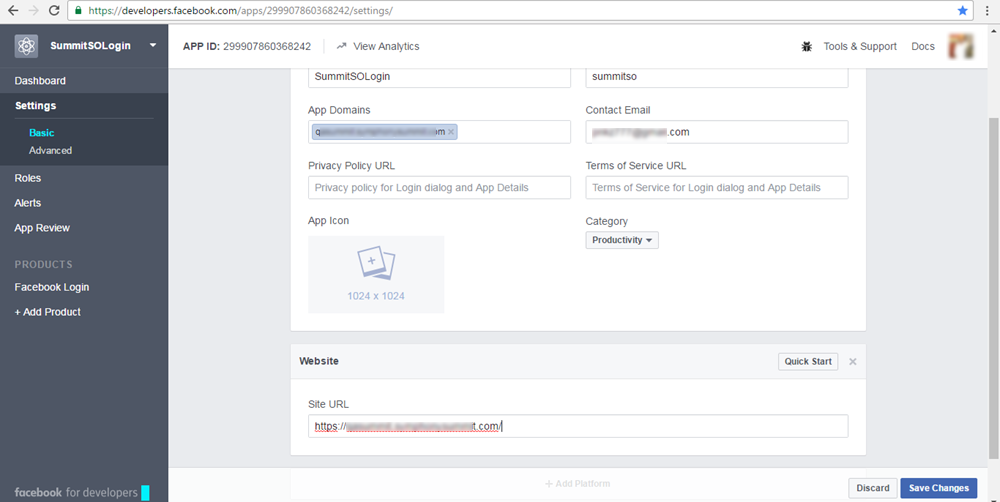

To configure SSO in SUMMIT application for Facebook:
Select Admin > Basic > Infrastructure > SSO Configuration. The SSO CONFIGURATION page is displayed. Select Facebook and click ADD NEW under ACTIONS panel.
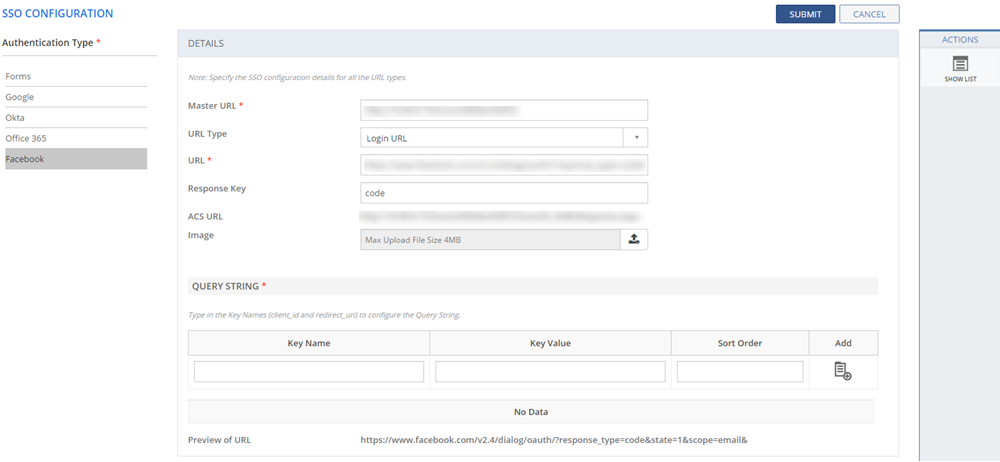
Figure: SSO Configuration: Facebook
Type in the SSO configuration details. For more information about the fields on the SSO Configuration : Facebook page, see Field Description.
Click SUBMIT. The SSO is configured successfully.
The following table describes the fields on the SSO Configuration : Facebook page:
| Field | Description |
| DETAILS | |
| Master URL | This field is auto-populated. |
| URL Type | Select the URL type in the drop-down list.
Note: It is mandatory to configure SSO configuration details for all URL types. |
| URL | This field is auto-populated. |
| Response Key | This field is auto-populated. |
ACS URL |
The ACS URL is auto-populated. |
| Image | Upload an image to be displayed as Facebook icon. |
| QUERY
STRING
Note: The information to be entered in the Query String fields vary based on the selected URL Type. List of keys for the selected URL type will be displayed in the Note below QUERY STRING. |
|
| Key Name/Key Values | Type in the Key Name and Key Value. For details,
 click
here. click
here.
|
| Sort Order | Specify sort order when multiple keys are added. |
| Add | Click the  icon to add multiple
keys. icon to add multiple
keys.
Note: The added key value is displayed in the QUERY STRING section. To delete a added key, click the  icon. icon. |
| Preview of URL | Displays the preview of the URL, based on the URL type selected. |
| CONFIGURED
URLS |
Displays the list of configured URL's with respective details. |
This section explains all the icons displayed on the ACTIONS panel of the SSO Configuration : Facebook page.
SHOW LIST
Click SHOW LIST to display the LIST table showing the SSO configured in the SUMMIT application for Facebook.
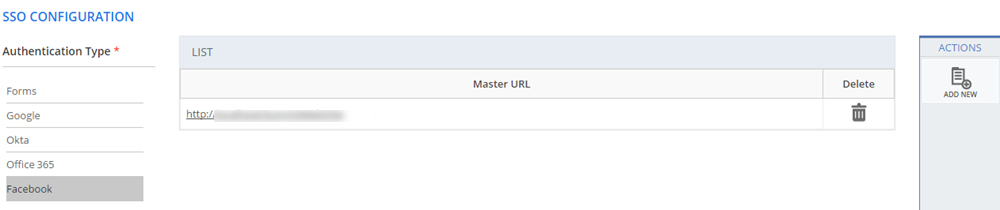
Figure: SSO Configuration : Facebook - List