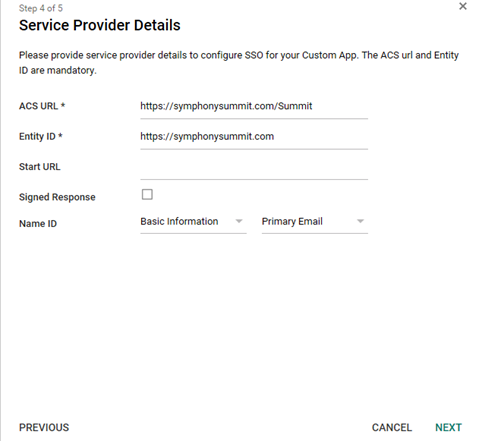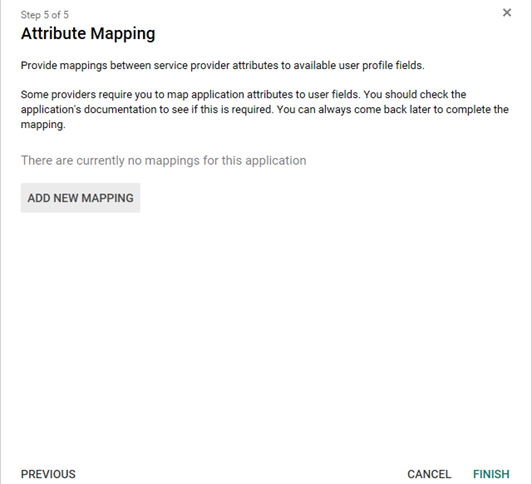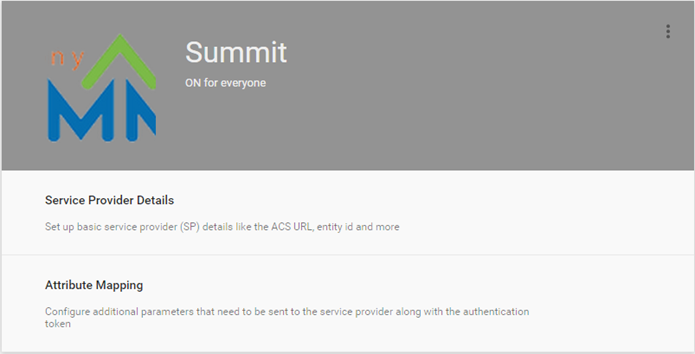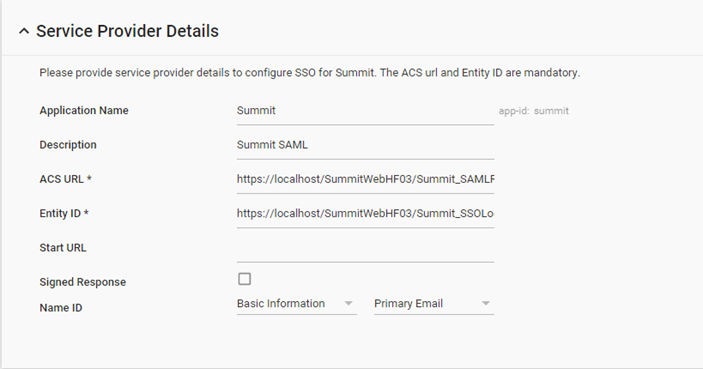

 Updating SUMMIT
Details as SAML App
Updating SUMMIT
Details as SAML App
Enabling/ Disabling
the SUMMIT SAML App
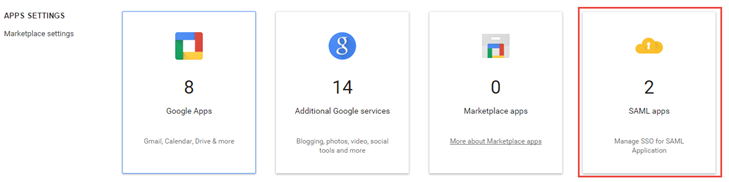
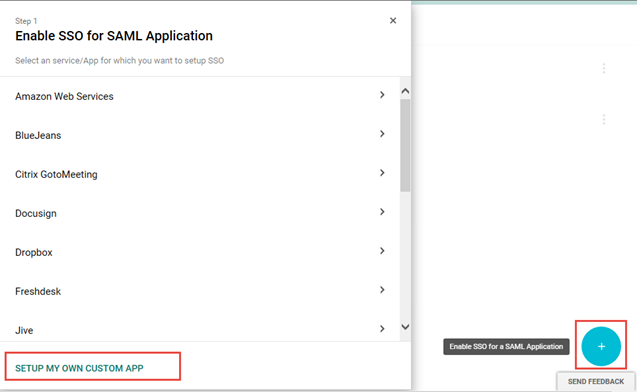
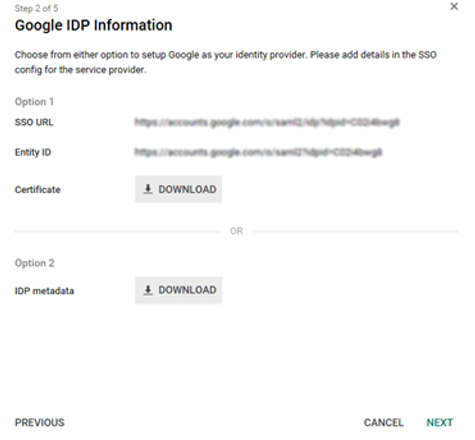
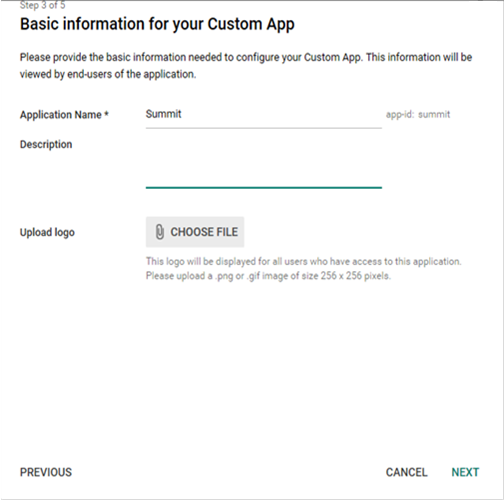
To configure SSO in the SUMMIT application for Google:
Select Admin > Basic > Infrastructure > SSO Configuration. The SSO CONFIGURATION page is displayed. Select Google and click ADD NEW under ACTIONS panel.

Figure: SSO Configuration: Google
Type in the SSO configuration details. For more information about the fields on the SSO Configuration : Google page, see Field Description.
Click VALIDATE. The certificate information is displayed if the uploaded certificate is valid. For invalid certificate, an error message is displayed.
Click SUBMIT. The SSO is configured successfully.
The following table describes the fields on the SSO Configuration : Google page:
| Field | Description |
| URL | Provide the URL. |
| SSO URL | Copy the SSO URL details from Google configuration page and paste the URL details in this text box. |
| Response Key | Provide the response key. |
| QUERY STRING | Add Key Names and Key Values. Specify Sort Order for multiple keys. |
| Upload Certificate | Upload the certificate that you downloaded during the SSO configuration using Google SAML apps. |
| Certificate | Displays the certificate. |
| Image | Upload an image to be displayed as Google icon. |
This section explains all the icons displayed on the ACTIONS panel of the SSO Configuration : Google page.
SHOW LIST
Click SHOW LIST to display the LIST table showing the SSO configured in the SUMMIT application for Google.
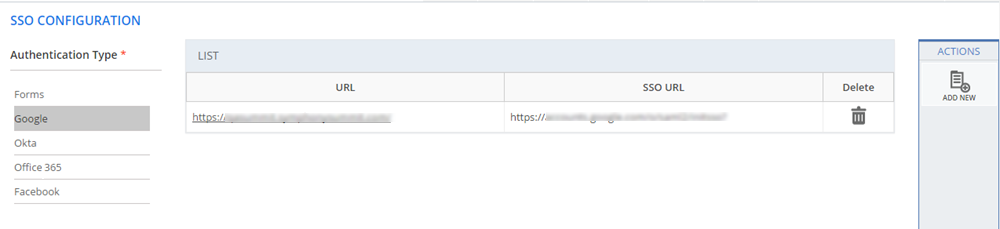
Figure: SSO Configuration : Google- List